
Independent repair shops
Add the carriers and fleets you already service. Track work orders, labor, parts, and shop invoices in one place, instead of a mix of paper tickets and spreadsheets.
Part of the UrbanTMS family
UrbanMechanic is a repair shop platform from Urban Technologies LLC, built for independent shops, fleet shops, and mobile mechanics. It is for running work orders, labor, parts, and invoices — and it works seamlessly with UrbanTMS.
When a carrier already uses UrbanTMS and approves a link, their trucks and trailers come over automatically, and your work orders, repairs, invoices, and paid status post straight into their Maintenance & Repairs. No double entry. See how it connects
Free for now, while we build a base of shops. Public signup is not open yet — early access requests go to info@urban-tms.com.
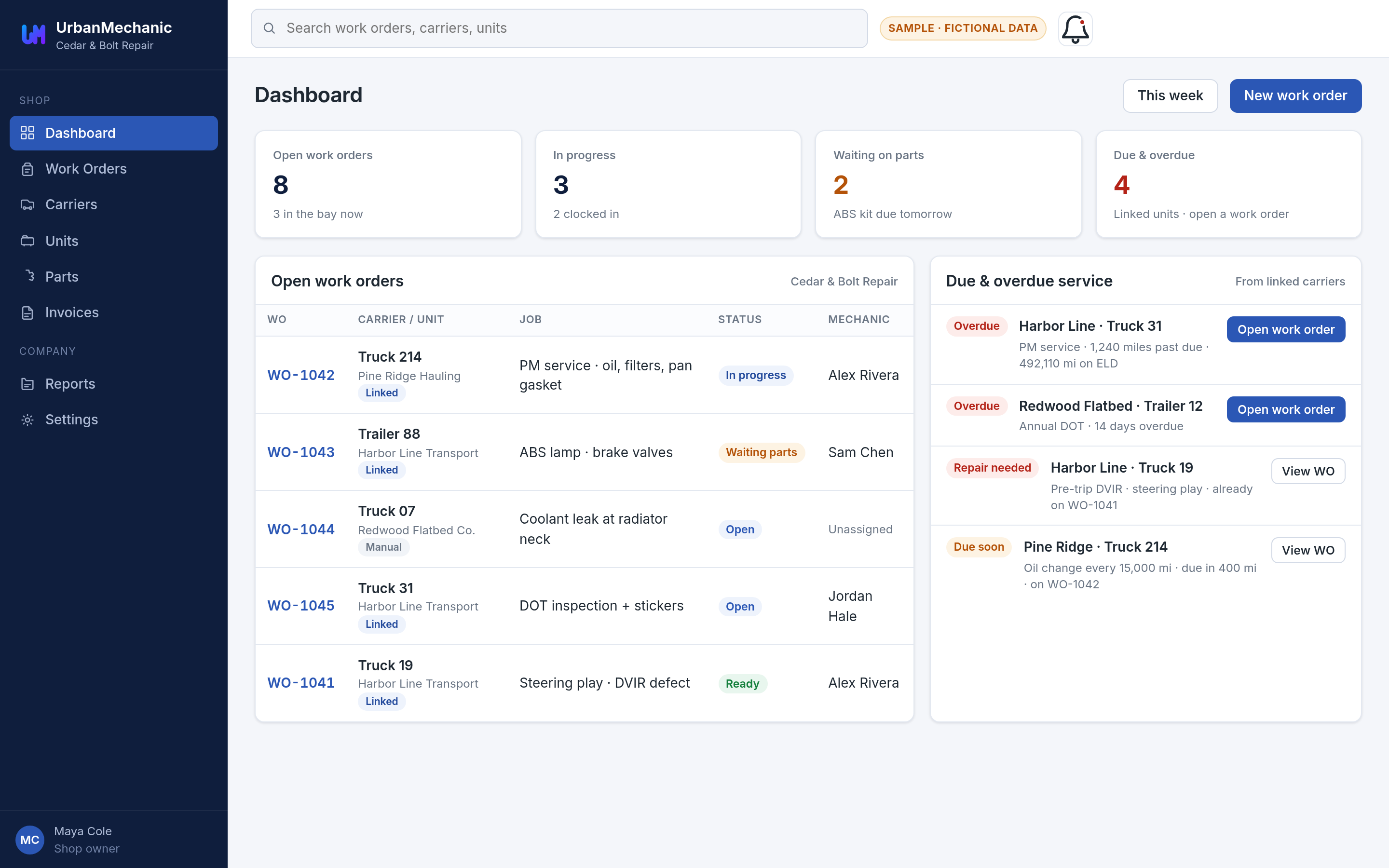
If you repair or maintain equipment for trucking carriers, UrbanMechanic is the shop side of the UrbanTMS family: one place for the job in the bay, and a path into the carrier’s records when they are already on UrbanTMS.
Add the carriers and fleets you already service. Track work orders, labor, parts, and shop invoices in one place, instead of a mix of paper tickets and spreadsheets.
Keep the shop’s day — open work, waiting on parts, ready for pickup — next to the units that are due or overdue, including PM by miles, days, or engine hours.
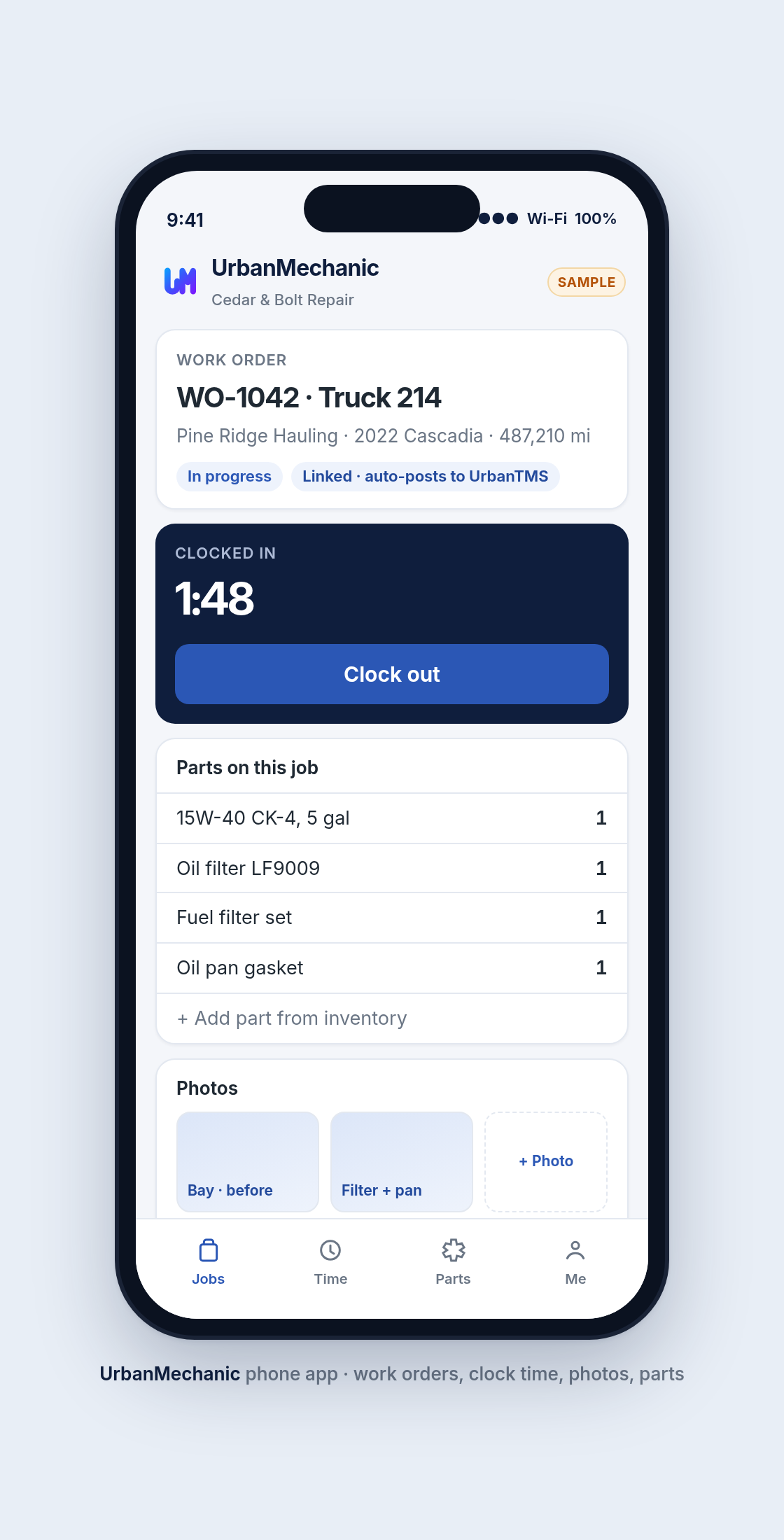
Clock in and out on a job, add parts, and take photos from a phone in the yard or on the road. Office work — invoices, QuickBooks, and carrier invites — stays on the web app.
When a carrier already uses UrbanTMS and approves a link with this shop, the two sides stay in sync. The shop does not retype the fleet, and the carrier does not re-enter the job.
After a carrier Admin consents, their trucks, trailers, and vehicles appear in the shop’s unit list — unit, VIN, plate, year/make/model, and live odometer or engine hours. Scope can be all current and future units, or a selected list. The shop never overwrites the carrier’s equipment record.
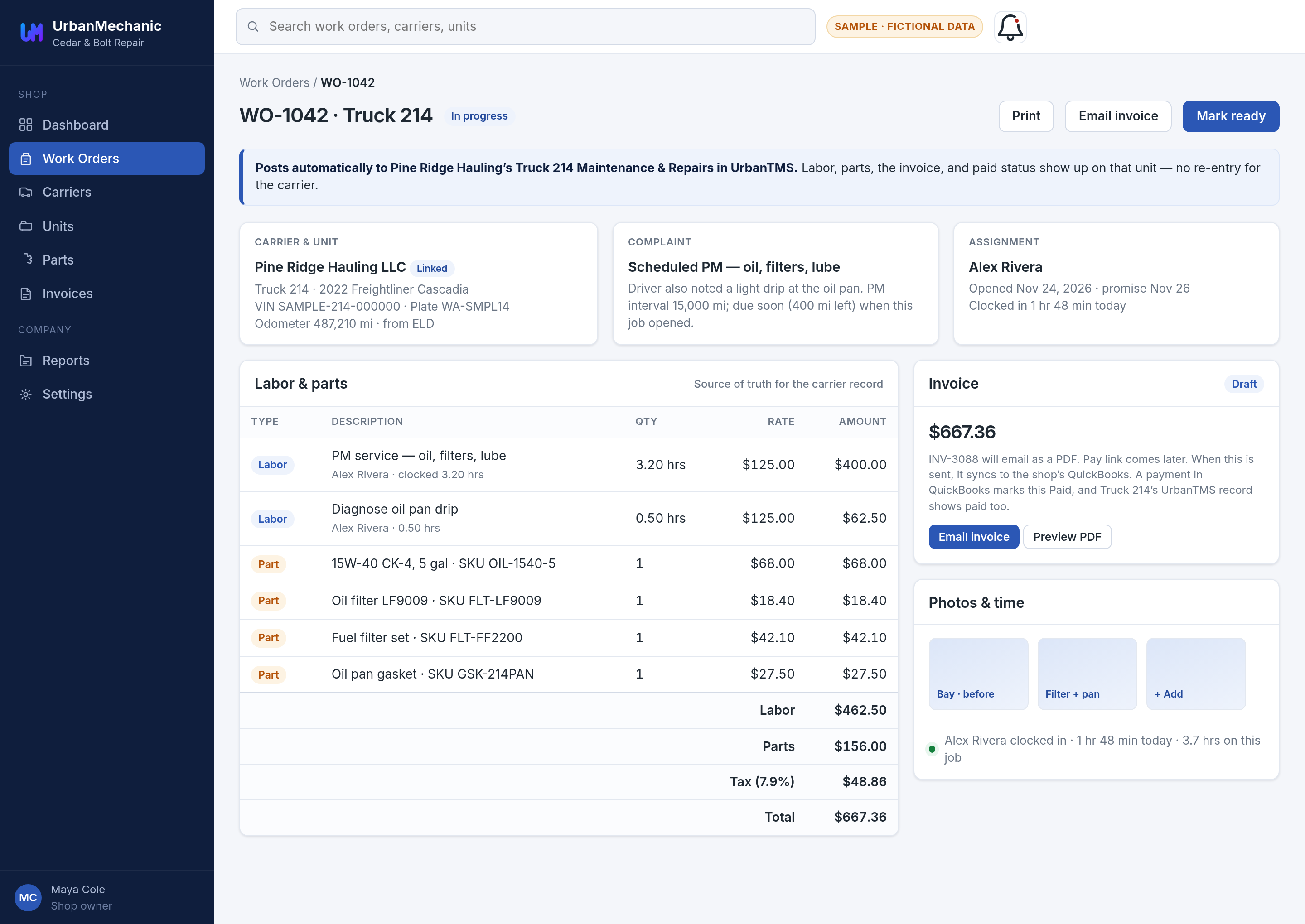
Work orders, repairs, labor, parts, invoices (including the PDF), and paid status post to that exact unit’s Maintenance & Repairs in the carrier’s UrbanTMS, and to the per-truck expense. There is no re-entry, and no separate “push” step in the normal path.
Due soon, overdue, and repair-needed alerts can reach the carrier office and the linked shop. The shop can open a work order in one step. When that job is completed in the matching PM category, last-done on the carrier’s schedule updates automatically.
The shop work order is the source of truth for linked jobs. Later edits — an added part, a labor change, an invoice sent, or a payment marked paid (including from the shop’s QuickBooks) — update the same carrier record. If the carrier unlinks, historical records stay; live updates stop.
A shop edition of UrbanTMS: web app for owners and office staff, plus a mechanic phone app for work in the bay. No dispatch, loads, or brokerage — just the shop.
Open a job on a carrier and unit, with complaint, promise date, and assigned mechanics. Labor lines (hours × rate or a flat job) and parts lines, plus tax and shop supplies. Statuses from Open through In Progress, Waiting on Parts, Ready for Pickup, Invoiced, and Closed.
Add the fleets you service by hand, with their trucks, trailers, and other vehicles. When a carrier uses UrbanTMS and approves a link, those units come over automatically — you don’t type them in again.
A shop-owned catalog with SKU, vendor, on-hand quantity, cost, sell price, and bin. Pull parts onto a work order from inventory, and keep an eye on what’s low.
Turn a work order into an invoice, download a PDF, and email it to the carrier. Track draft, sent, partial, paid, and void. Mark paid by hand for check or cash. A customer pay link can be added later; it is not part of the product yet.
Connect the shop’s own QuickBooks. Sent invoices sync out to QBO. When payment is recorded in QuickBooks, UrbanMechanic marks the invoice Paid — and, on a linked job, that paid status posts to the carrier’s unit record too.
See units that are due soon, overdue, or flagged repair needed, based on miles, days, and engine hours. A linked shop can open a work order in one step. When that job is completed in the matching PM category, last-done on the carrier’s schedule updates automatically.
Attach job photos — before, after, or a part on the bench. Mechanics clock in and out on a work order from the web app or the phone app, so labor time stays on the job.
Open work, jobs in progress, waiting on parts, and due or overdue units — with a path to open a work order on a unit that needs service.
Shop owner and office tools for users, carriers, and billing settings. Mechanics see the work they are on, not shop billing or another shop’s data.
When the carrier uses UrbanTMS
The shop never browses the carrier’s TMS, and the carrier never shares equipment until an admin approves it. Linking is the core of UrbanMechanic when both sides are on the UrbanTMS family — not a file export the carrier has to paste in later.
Search for an UrbanTMS carrier by name, MC, or DOT. If they are not a customer yet, send an invite email.
Only a carrier Admin — not a driver — can approve sharing equipment with this shop. Scope can be all current and future units, or a selected list of trucks and trailers.
Consented trucks, trailers, and vehicles show up automatically. The shop reads unit, VIN, plate, year/make/model, and live odometer or engine hours — it does not overwrite the carrier’s equipment record. Later units can appear on their own when the scope is “all.”
When you open, update, or complete a job on a linked unit, the work order, repairs, labor, parts, invoice, PDF, and paid status post to that exact truck or trailer’s Maintenance & Repairs in the carrier’s UrbanTMS. There is no re-entry, and no separate “push” step in the normal path.
Due soon, overdue, and repair-needed alerts (including pre-trip / DVIR defects) can reach the carrier office and the linked shop. Completing the matching job moves last-done on the carrier’s PM schedule so the next due date updates without re-entry.
Live access to units and live auto-post stop. The shop keeps its own work-order and invoice history, and historical maintenance rows stay on the unit — the work happened. Manual carriers (not on UrbanTMS, or not yet linked) are added by hand, with vehicles added by hand, and can be upgraded later if they join and approve.
Mechanic phone app
Mechanics get a real phone app — not a squeezed-down browser window — for the work they do on the shop floor or at a yard.
Invoices, QuickBooks, and carrier invites stay on the web app for shop owners and office staff. Mechanics can use the web app too, but the phone is the day-to-day tool in the bay.
We’re building a base of shops, so UrbanMechanic does not have a paid plan yet. When a price is set, it will be clearly listed here. Linking a carrier does not have to add a second bill on the carrier’s side — the value for them is that Maintenance & Repairs can fill itself.
UrbanMechanic
Free
For now, while we build a base of shops
Public signup is not open yet. Email info@urban-tms.com to request early access. That address is the existing UrbanTMS contact mailbox.
UrbanMechanic is a mechanic and repair shop platform from Urban Technologies LLC (Brush Prairie, WA). It is a shop edition of UrbanTMS — the same product family as the carrier, broker, and shipper editions at urban-tms.com — with a web app and a mechanic phone app. It is for shops that service trucks, trailers, and other vehicles for trucking carriers.
Independent repair shops, fleet shops, and mobile mechanics who work on carrier equipment. Shop owners and office staff work in the web app. Mechanics use the phone app day to day for work orders, clock time, parts, and photos.
No. You can add carriers and their vehicles by hand and run work orders, parts, and invoices entirely in UrbanMechanic. If a carrier later joins UrbanTMS and approves a link, that manual customer can be upgraded so units and job history start flowing both ways.
The shop looks up the UrbanTMS carrier or sends an invite. A carrier Admin approves sharing equipment with that shop, either all units or a selected list. Consented trucks and trailers appear in the shop. Work on those units posts automatically to that unit’s Maintenance & Repairs in the carrier’s UrbanTMS — the job, parts, labor, invoice, and paid status — with no re-entry. The carrier can revoke or narrow the link at any time.
A shop user never sees another shop’s data, and never sees a linked carrier’s loads, rates, customers, or any unit the carrier did not share. The carrier sees shop-sourced work in the same Maintenance & Repairs area they already use, labeled as coming from the linked shop. Corrections go through the shop, then the carrier record updates. If the carrier unlinks, historical auto-posted records stay on the unit; live updates stop.
Yes. The product includes a mechanic phone app for open work orders, job detail, clock in/out, parts, photos, and marking a job ready. Shop office work stays on the web app. The app follows the same pattern as the other UrbanTMS mobile apps.
The shop can connect its own QuickBooks Online account. Sent invoices sync to the shop’s QBO. When payment is recorded in QuickBooks, UrbanMechanic marks that invoice Paid, and on a linked job that paid status also posts to the carrier’s unit record. Shops that are not on QuickBooks can still mark invoices paid by hand.
UrbanMechanic is free for now, while we build a base of shops. No paid plan or dollar amount has been set yet. When pricing is introduced, it will be stated clearly. Public signup is not open in the meantime; use Get early access to email us.
Not through a public signup form. UrbanMechanic is not open for self-serve signup yet. If you run a shop and want to be included as we build, use Get early access to email info@urban-tms.com — the UrbanTMS contact address — and tell us about your shop.
Tell us about your shop and the fleets you service. Public signup is not open yet; early access is by email.
Requests go to info@urban-tms.com, the UrbanTMS contact mailbox. We will not open a public signup until we’re ready.